NOLGIA for After Effects
Let your agent work in After Effects.
The free NOLGIA extension for After Effects connects the project you have open to NOLGIA, so your AI agent can read it, run ExtendScript, render previews into your Library and bring in your NOLGIA assets. Your project files stay on your computer.
Version 0.1.1 · nolgia-adobe-0.1.1.zxp · Free · After Effects 2025 or later
One install covers After Effects, Premiere Pro and Illustrator.
What you need
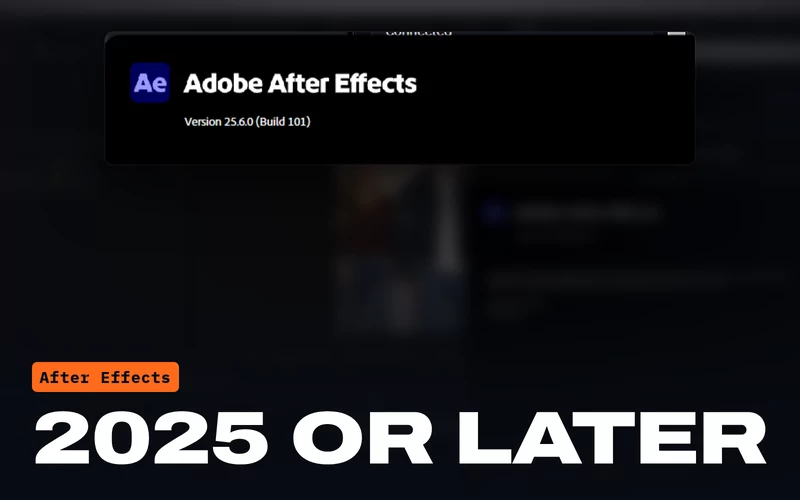 After Effects 2025 or laterVersion 25.0 or later, on Windows or macOS. The same extension works in Premiere Pro and Illustrator 2025 and later.
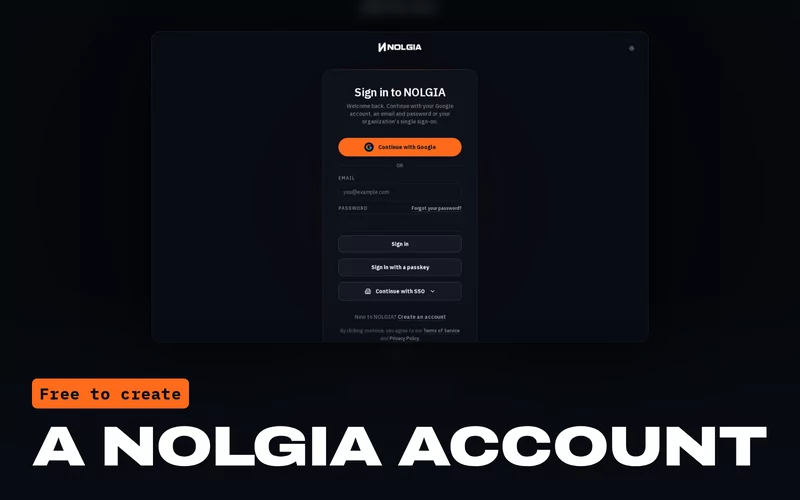 A NOLGIA accountFree to create. The extension signs in with it.
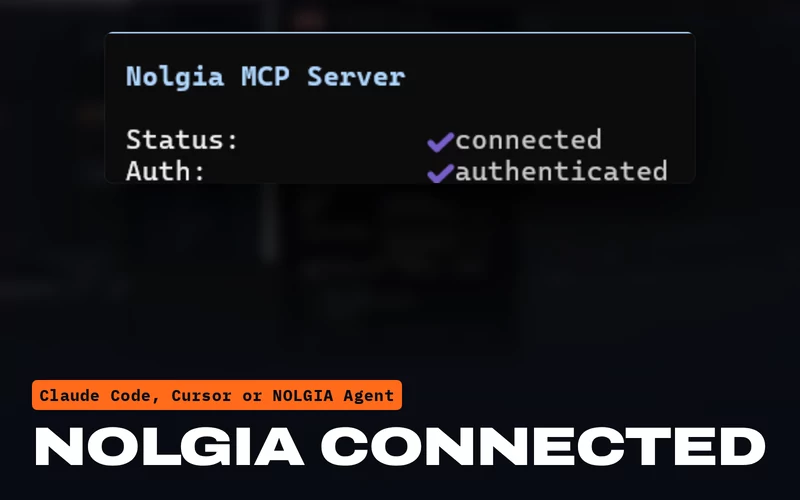 An agent with NOLGIA connectedClaude Code, Claude Desktop, Cursor or another MCP client, or NOLGIA Agent.
What your agent can do
Real hands in your project.
Your agent works through NOLGIA's app tools, and every command shows in the panel's Activity list.
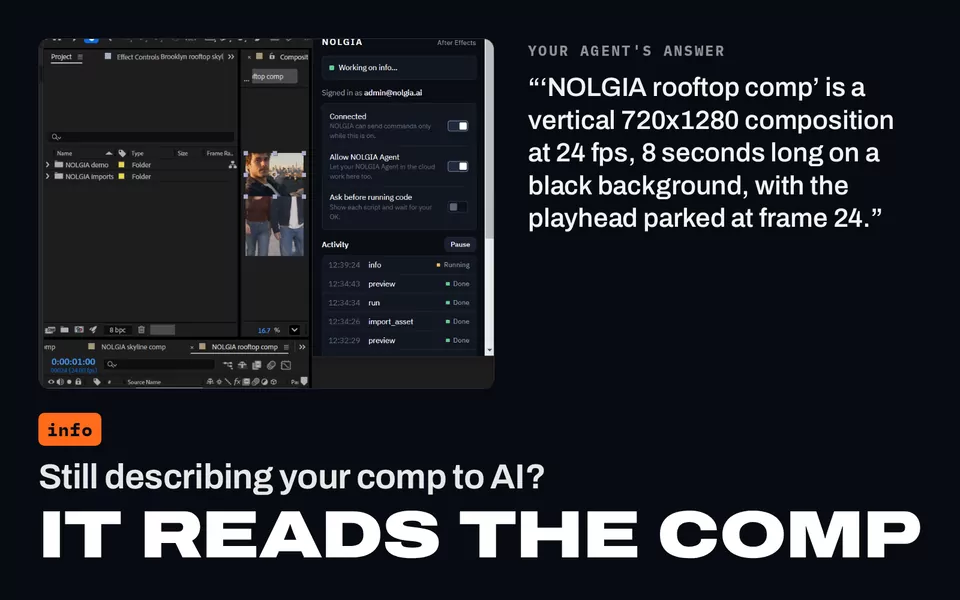
Read the project
The project file and whether it has unsaved changes, the active comp's size, frame rate, work area and layers with their effects, the other comps, the selection and the render queue.
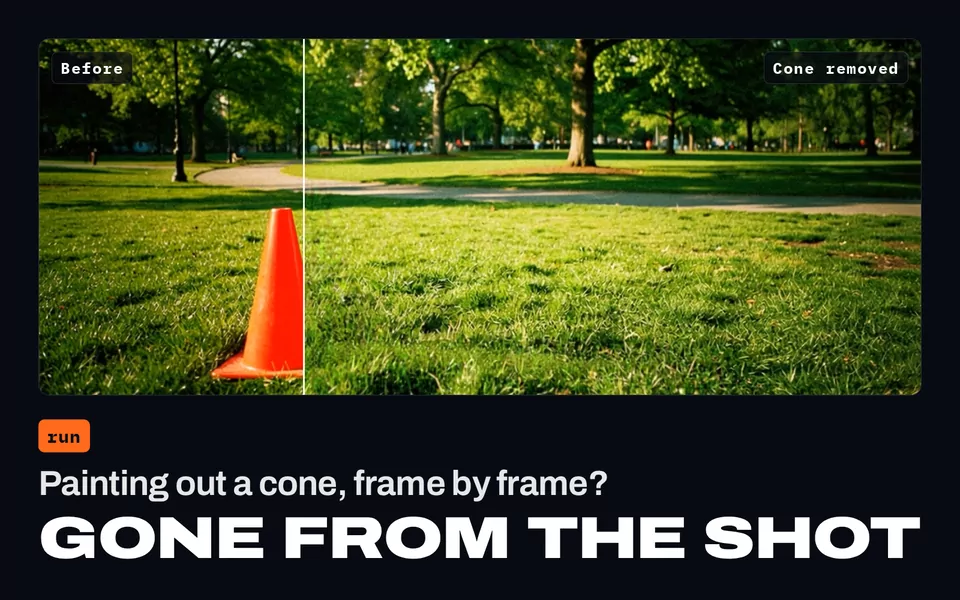
Run ExtendScript
Change the project step by step with After Effects' own scripting, and get back what each step did. Each run is one undo step. Ask before running code shows you each script first.
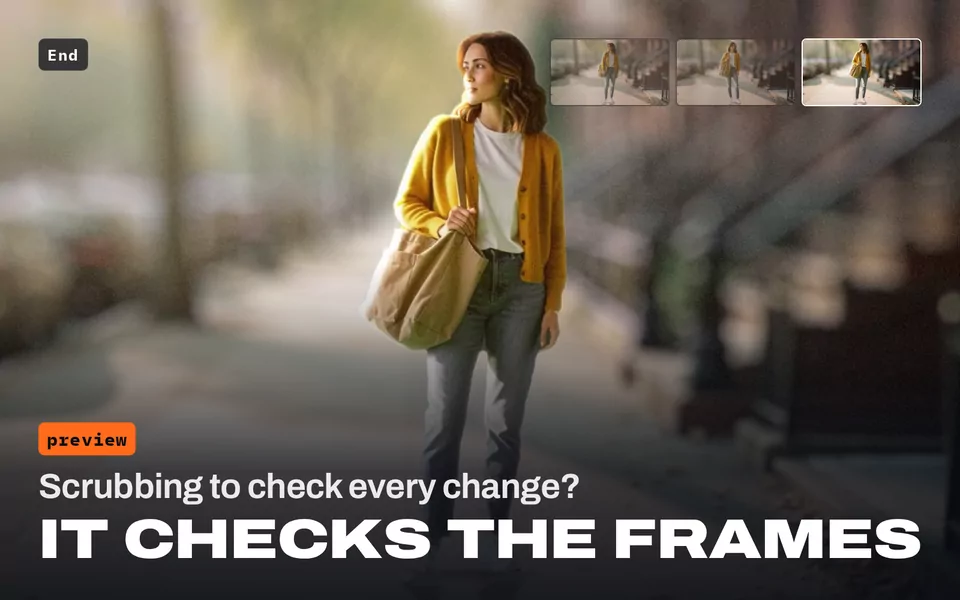
Render previews into your Library
A still of any comp or footage item at any frame, so your agent can look at its own work.
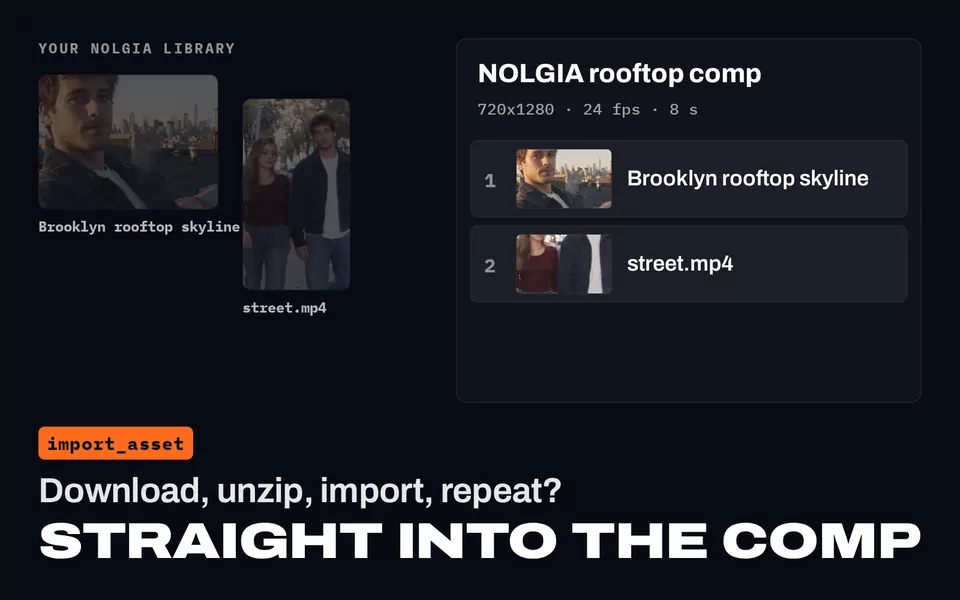
Import your NOLGIA assets
Images, videos and audio from your Library, as footage in a NOLGIA imports folder or straight into the active comp as a layer.
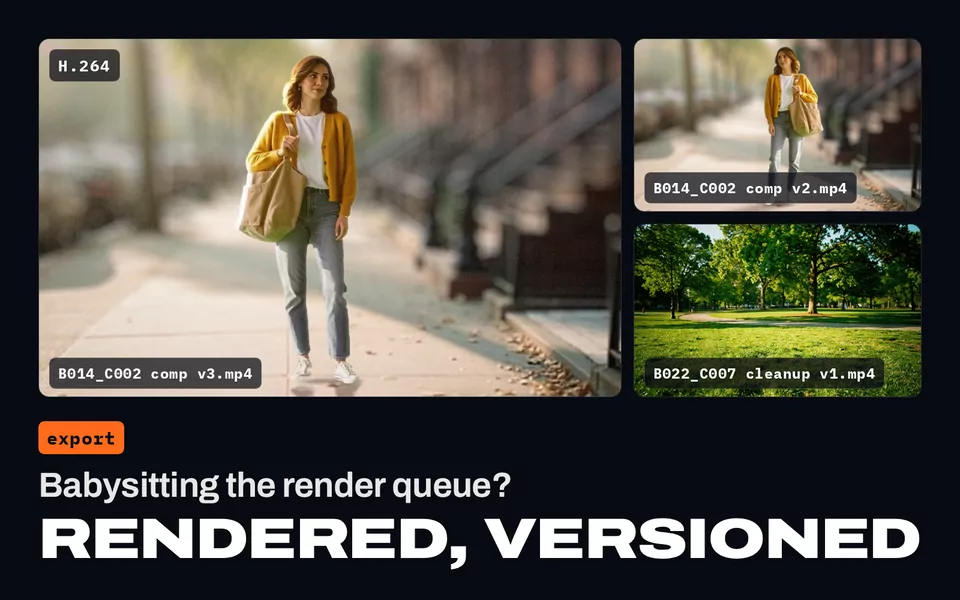
Export to your Library
MP4 video through the render queue (H.264) and PNG frames, uploaded to your NOLGIA Library. A copy of the project is saved next to it, on your computer.
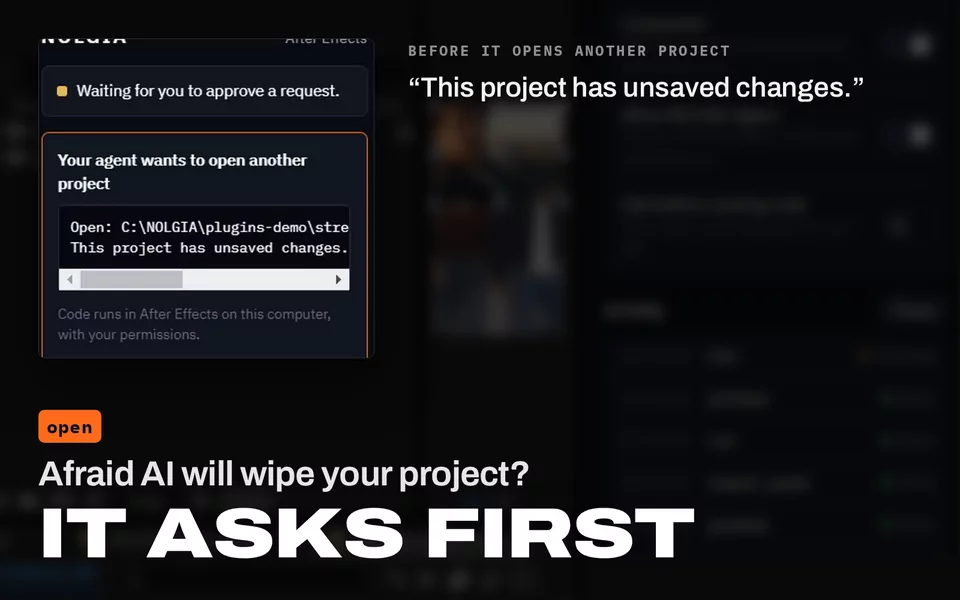
Save and open projects
Save the project, or open another one. NOLGIA asks you first when there are unsaved changes.
Your project files stay on your computer. After Effects projects and your footage are never uploaded to NOLGIA; only the previews and exports you ask for go to your Library.
Install
Six steps, a few minutes.
One install adds NOLGIA to After Effects, Premiere Pro and Illustrator. The extension remembers your sign in, and reconnects when After Effects starts if you left Connected on.
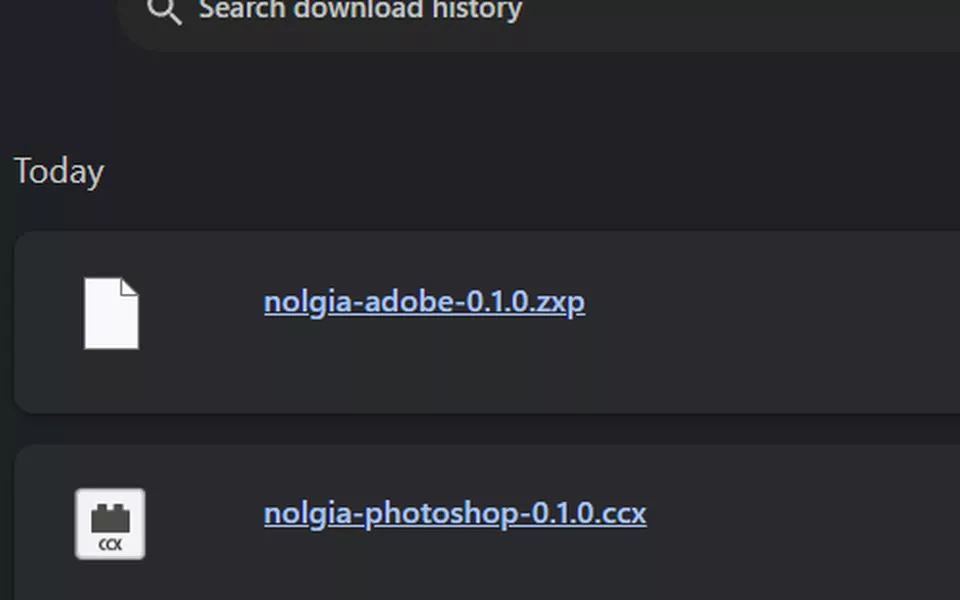
Download the extension
Download nolgia-adobe-0.1.1.zxp and leave it in your Downloads folder. It is one file for After Effects, Premiere Pro and Illustrator.
Quit the Adobe apps
Quit After Effects, Premiere Pro and Illustrator, whichever are open. An app that is open during the install does not show NOLGIA until you restart it.
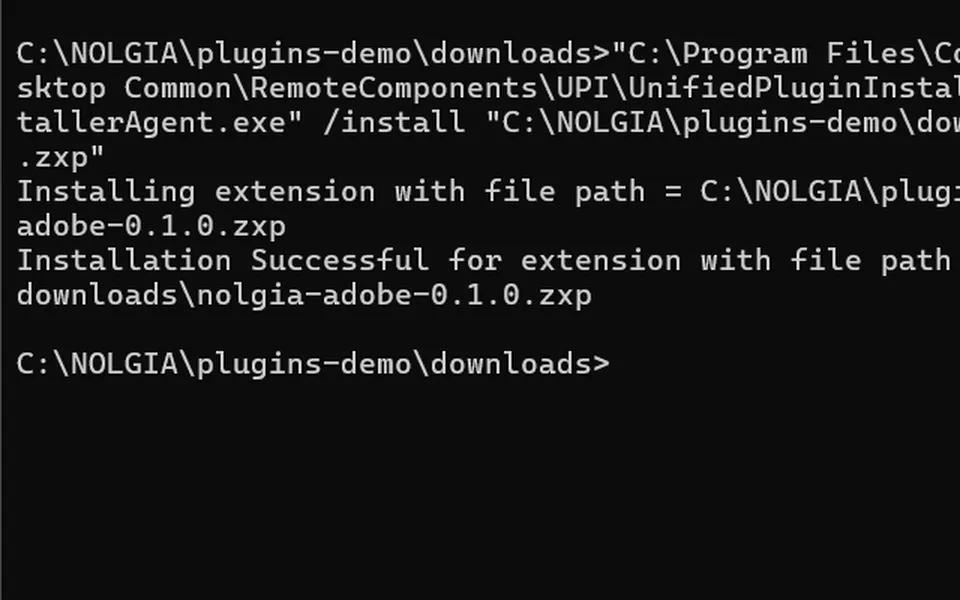
Install it with Adobe's installer
A .zxp file does not install with a double-click. Adobe's own installer comes with the Creative Cloud app: open Command Prompt on Windows (press the Windows key, type cmd, press Enter) or Terminal on macOS, paste the command for your computer and press Enter.
Command Prompt "C:\Program Files\Common Files\Adobe\Adobe Desktop Common\RemoteComponents\UPI\UnifiedPluginInstallerAgent\UnifiedPluginInstallerAgent.exe" /install "%USERPROFILE%\Downloads\nolgia-adobe-0.1.1.zxp"Terminal "/Library/Application Support/Adobe/Adobe Desktop Common/RemoteComponents/UPI/UnifiedPluginInstallerAgent/UnifiedPluginInstallerAgent.app/Contents/MacOS/UnifiedPluginInstallerAgent" --install ~/Downloads/nolgia-adobe-0.1.1.zxpIt prints Installation Successful. Saved the file somewhere else? Change the path at the end of the command. A ZXP installer app installs the same file too. The extension is signed, so there is no debug setting to change.
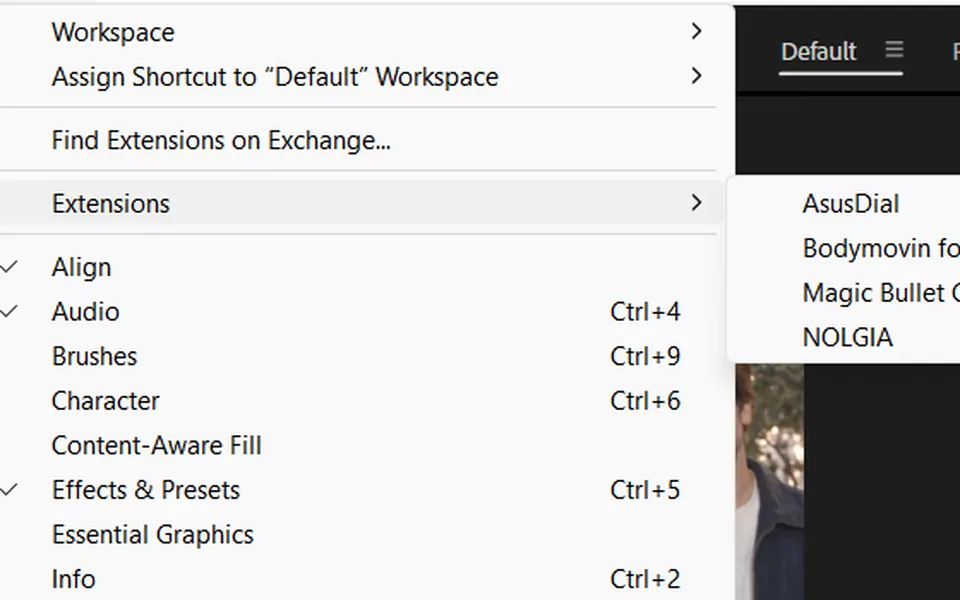
Open the NOLGIA panel
Start After Effects and choose Window > Extensions > NOLGIA.
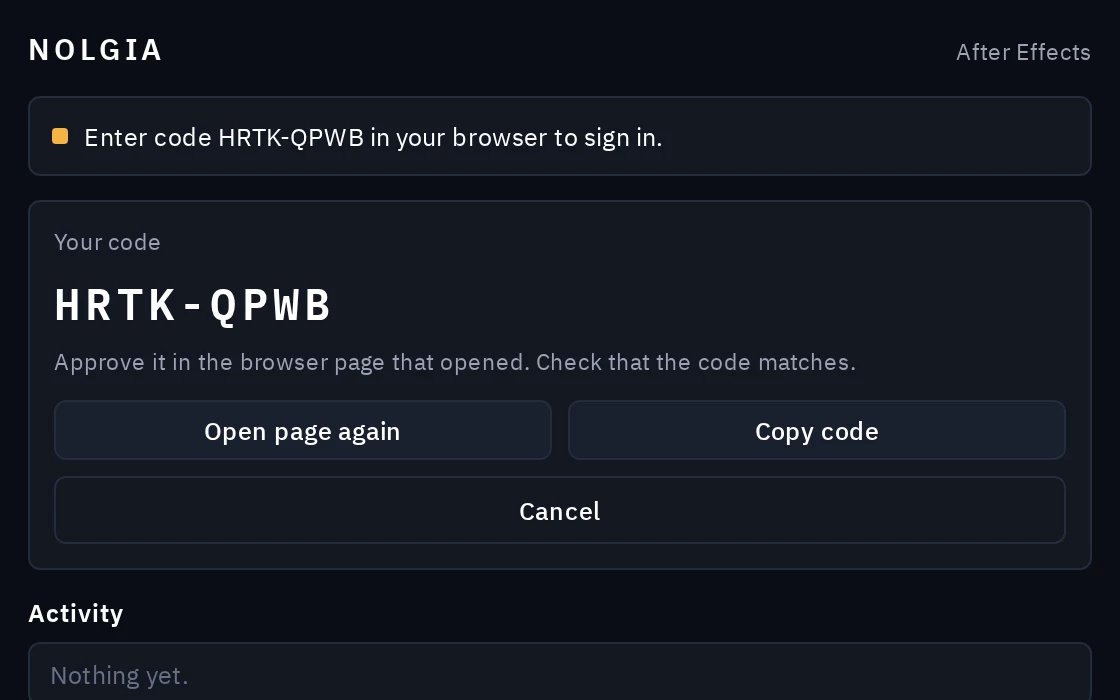
Sign in with the code
Click Sign in. Your browser opens a NOLGIA page: check that the code matches the one in the panel, then approve it. Each app signs in on its own, so do this once in every app you use.
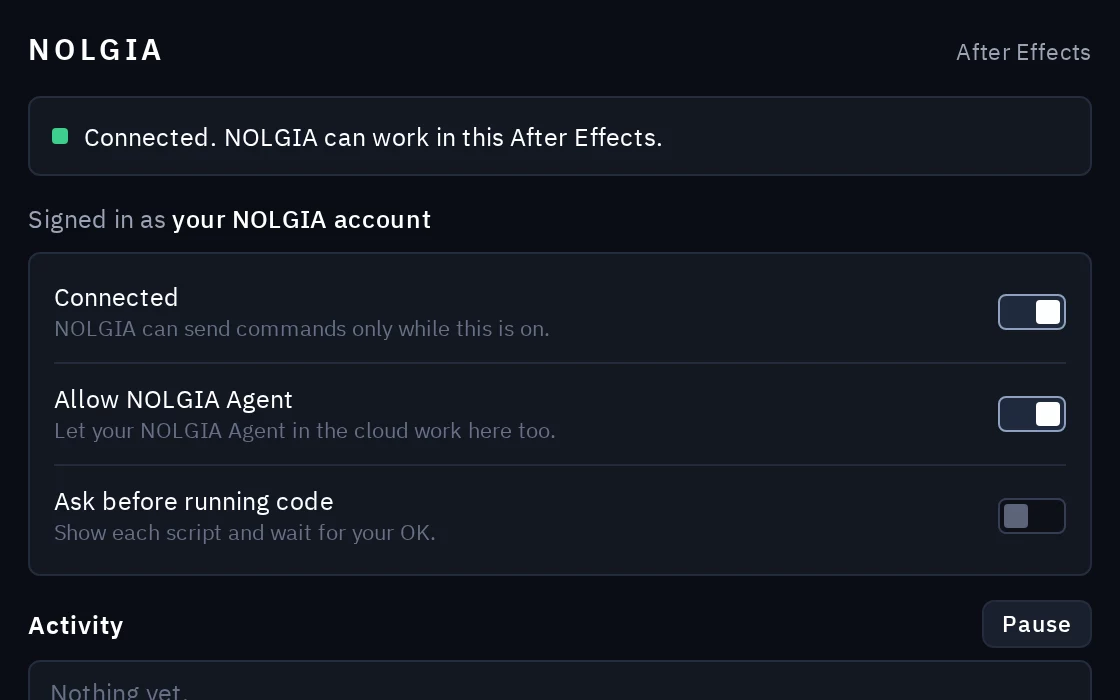
Keep Connected on
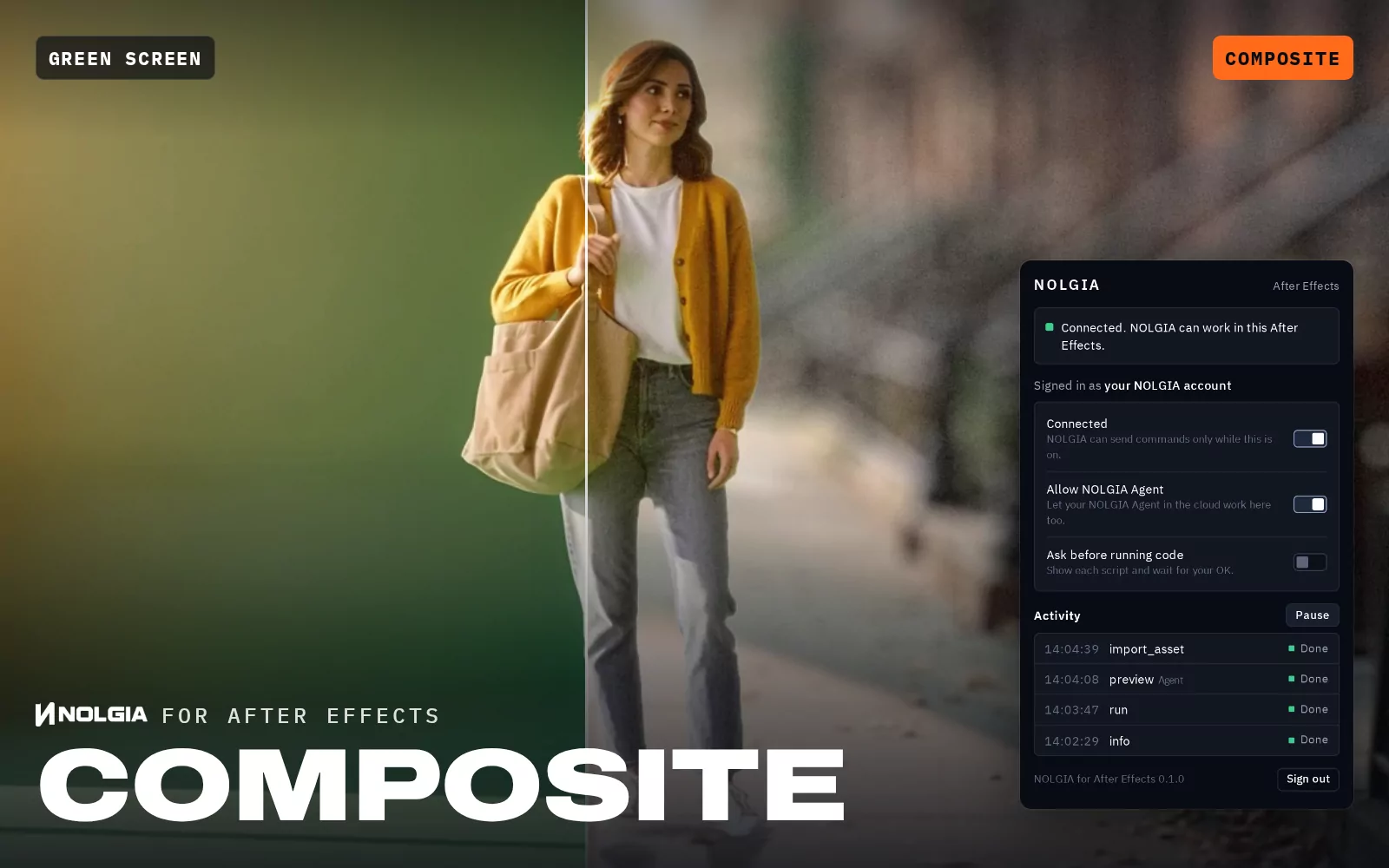
The panel reads “Connected. NOLGIA can work in this After Effects.” Now ask your agent to work in your project. Closing the panel does not disconnect.
The NOLGIA panel
You decide what it may do.
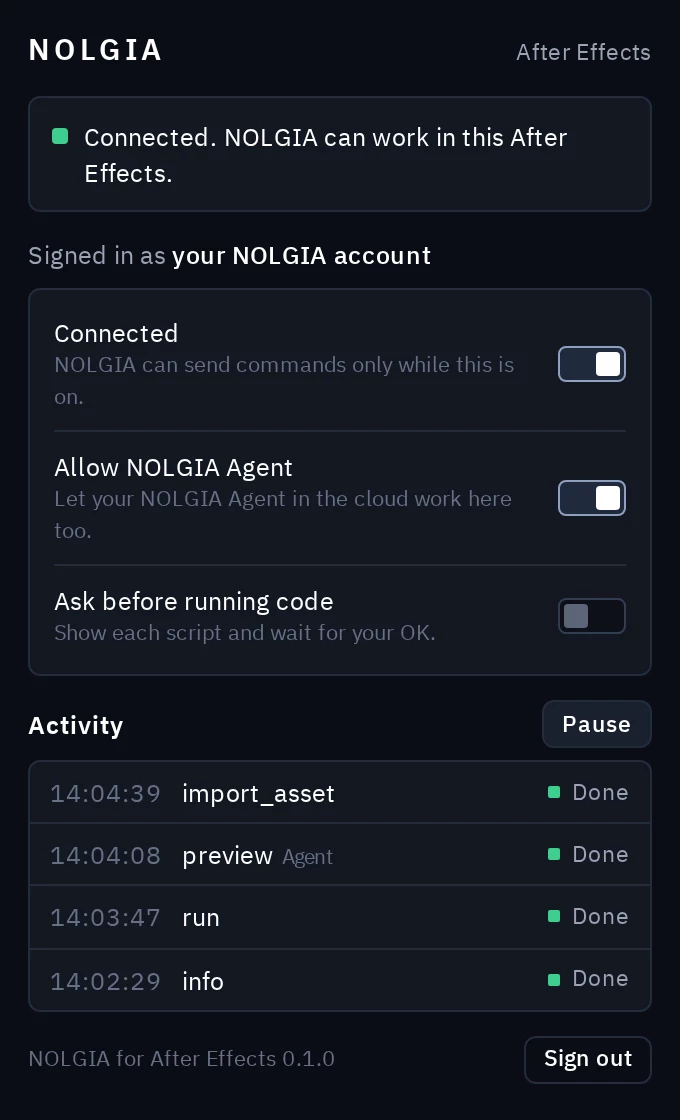
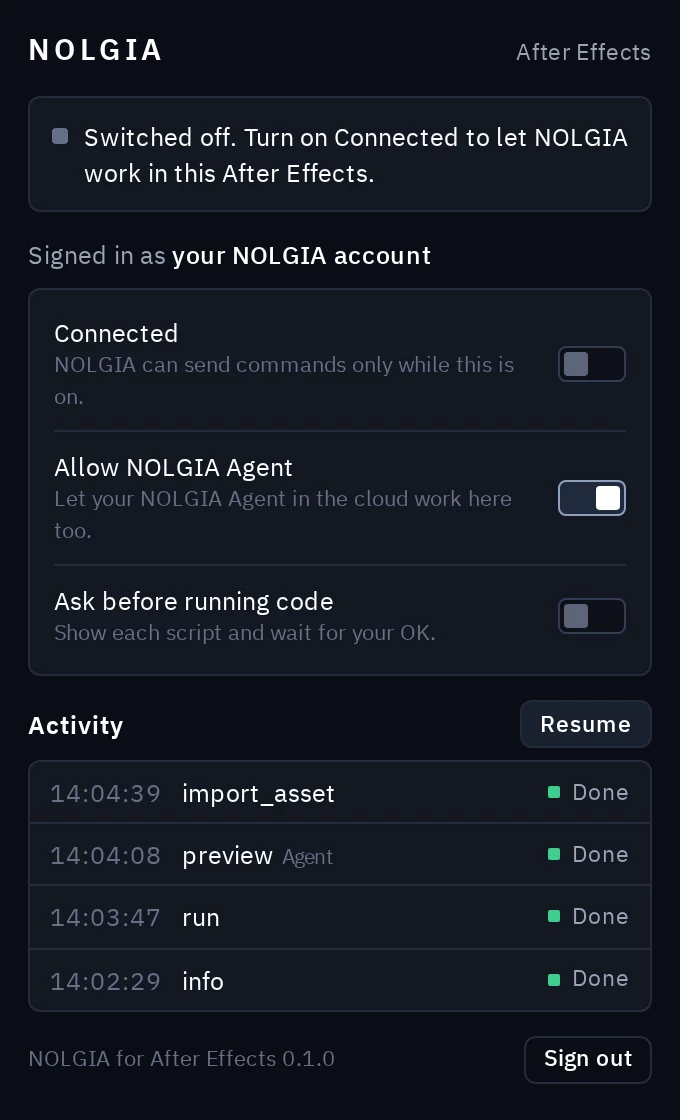
Everything lives in the NOLGIA panel (Window > Extensions > NOLGIA). Closing the panel does not disconnect: a hidden part of the extension keeps the connection while the app is open.
- Connected
- NOLGIA can send commands to this After Effects only while this is on. It stays on the next time After Effects starts.
- Activity and Pause
- Every command your agent sends, with its status. Pause stops it at any time; Resume picks up again.
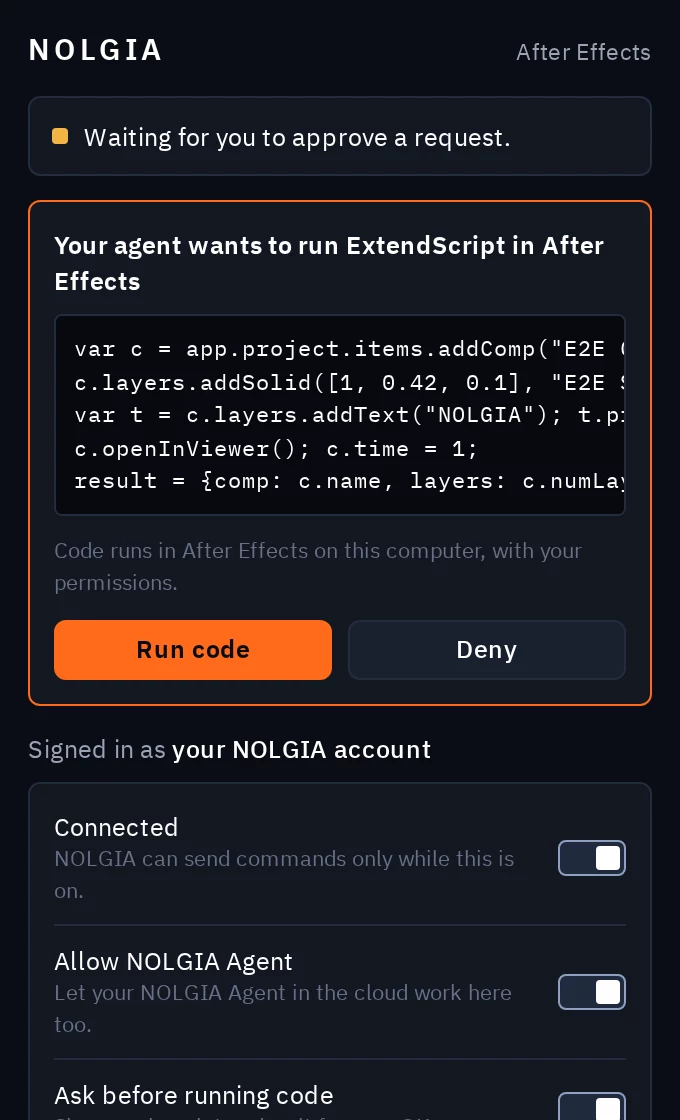
- Ask before running code
- Shows every script first (the panel opens by itself) and waits for Run code or Deny.
- Allow NOLGIA Agent
- Also lets your NOLGIA Agent in the cloud work here, not only the agents you run yourself.
- Sign out
- Disconnects and forgets the sign in for After Effects on this computer.
ExtendScript your agent runs in After Effects runs on your computer with your permissions, like any script. Turn on Ask before running code to see it first, and only connect agents you trust.
Film assistant presets
Workflows made for After Effects.
Each preset is a written workflow your agent follows step by step in your own project. The work in After Effects is free; NOLGIA generation along the way is priced as usual.
The After Effects presets are on their way. Your agent can already work in After Effects with plain requests.
Troubleshooting
If something is not working.
- My agent says After Effects is not connected.
- Open the NOLGIA panel (Extensions in the Window menu, then NOLGIA). It should read “Connected. NOLGIA can work in this After Effects.” If it says Switched off, turn Connected on. If it asks you to sign in again, click Sign in. Each app signs in on its own, so signing in to Premiere Pro does not sign in After Effects. Your agent has to use the same NOLGIA account as the extension, and NOLGIA Agent can only reach After Effects while Allow NOLGIA Agent is on.
- NOLGIA is not in the Extensions list of the Window menu.
- Usually After Effects was open while the extension installed. Quit it completely and start it again. If NOLGIA is still missing, quit the app, run the install command again and check that it prints Installation Successful. The installer skips a version that is already installed: to install the same version again, first run the command with /remove NOLGIA (on macOS, --remove NOLGIA) in place of the install part.
- Does it work with my version of After Effects?
- It needs After Effects 2025 (version 25.0) or later, on Windows or macOS. The About After Effects window shows your version: it is in the Help menu on Windows and in the After Effects menu on macOS. Older versions do not list NOLGIA.
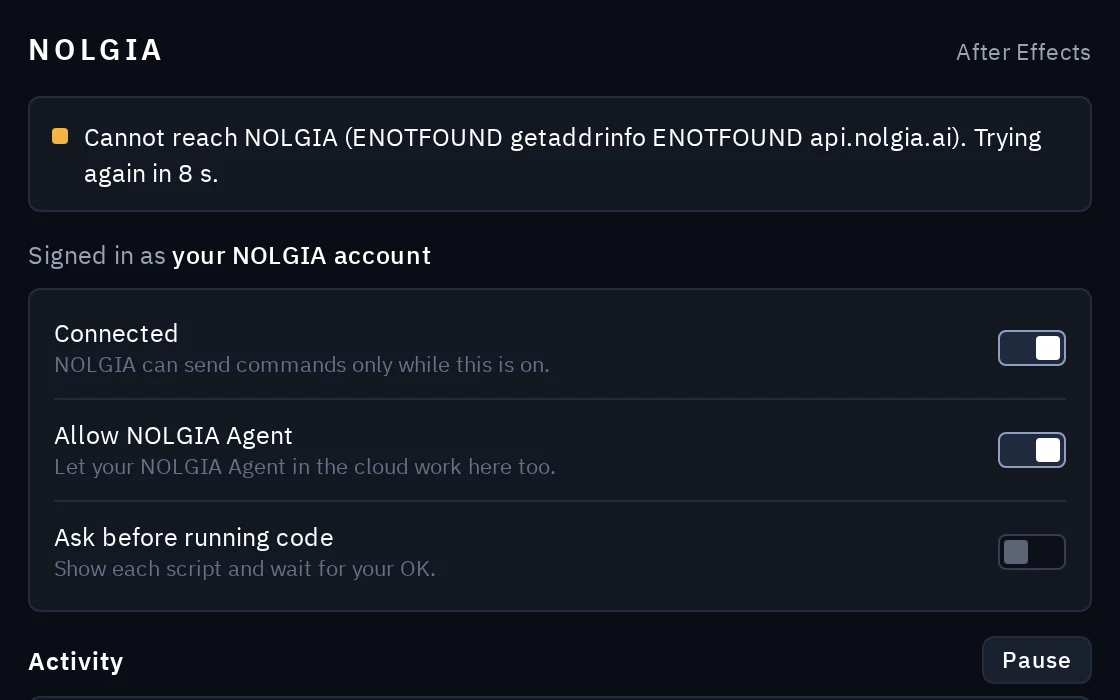
- The panel says it cannot reach NOLGIA.
- The extension connects out to api.nolgia.ai over HTTPS, the same way your browser does, and keeps trying on its own. Previews and exports upload to NOLGIA's file storage at storage.googleapis.com. Nothing connects in to your computer, so no port needs opening. On a work or school network a firewall or proxy may block it: ask for api.nolgia.ai and storage.googleapis.com to be allowed.
- My agent is waiting and nothing happens.
- With Ask before running code on, the extension waits for you: the NOLGIA panel opens by itself with the script, so click Run code or Deny. A paused extension runs nothing until you click Resume. A script that is still running keeps the app busy until it finishes, because ExtendScript cannot be stopped from outside.
Open source.
The NOLGIA extension for After Effects, Premiere Pro and Illustrator is free software under the GPL-3.0-or-later license. Read every line on GitHub.